Dayslot on iPhone Duo
A phone that opens into a small tablet asks a simple question: what should a to-do app do with a fold? Our answer turned out simpler than our first plan.
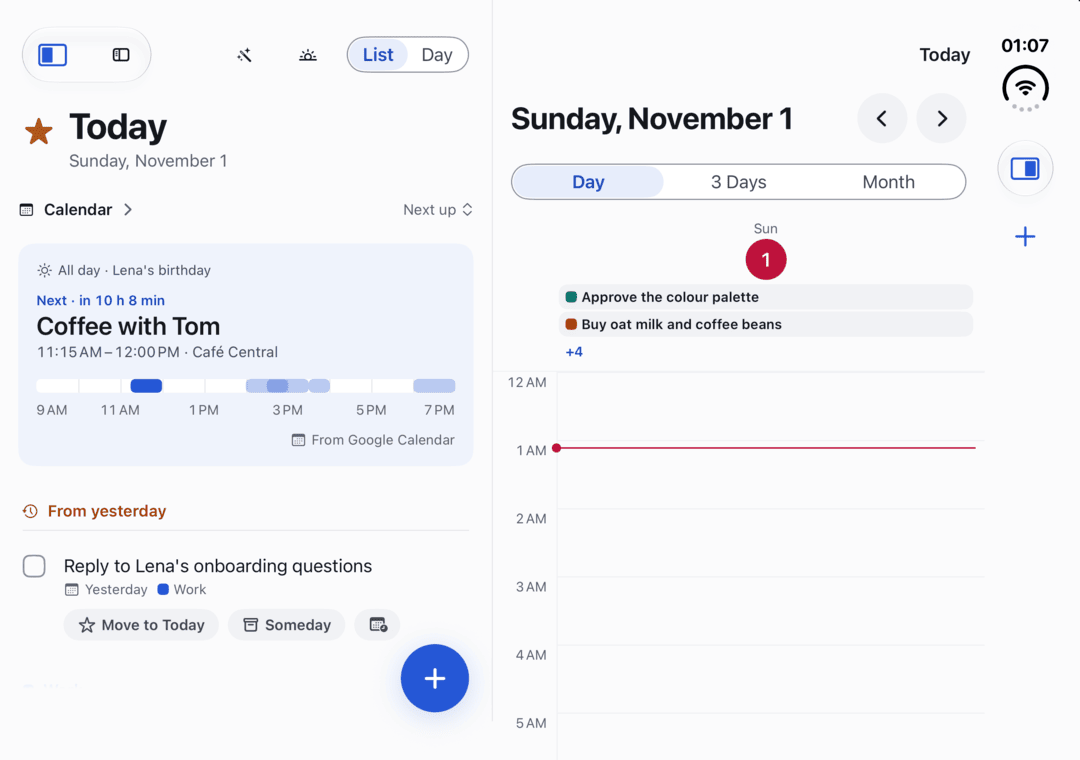
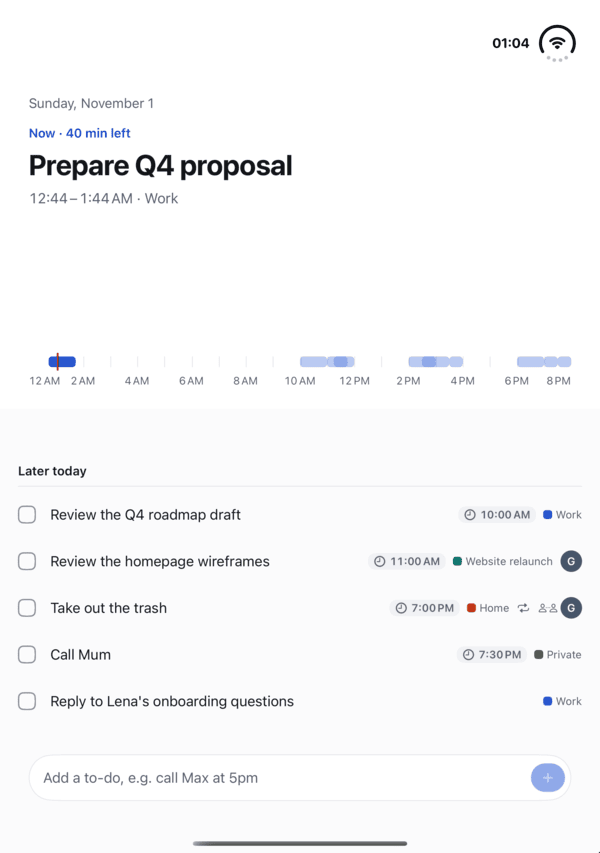
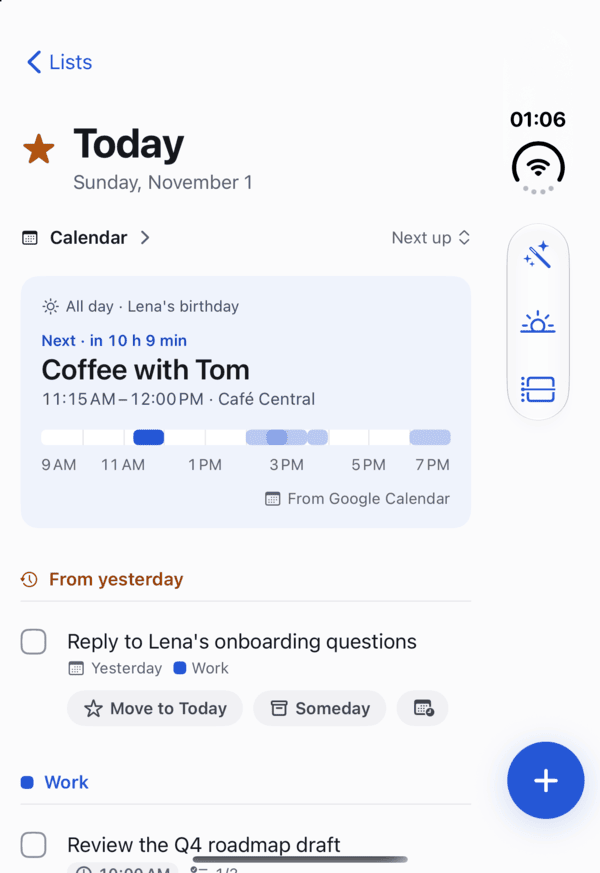
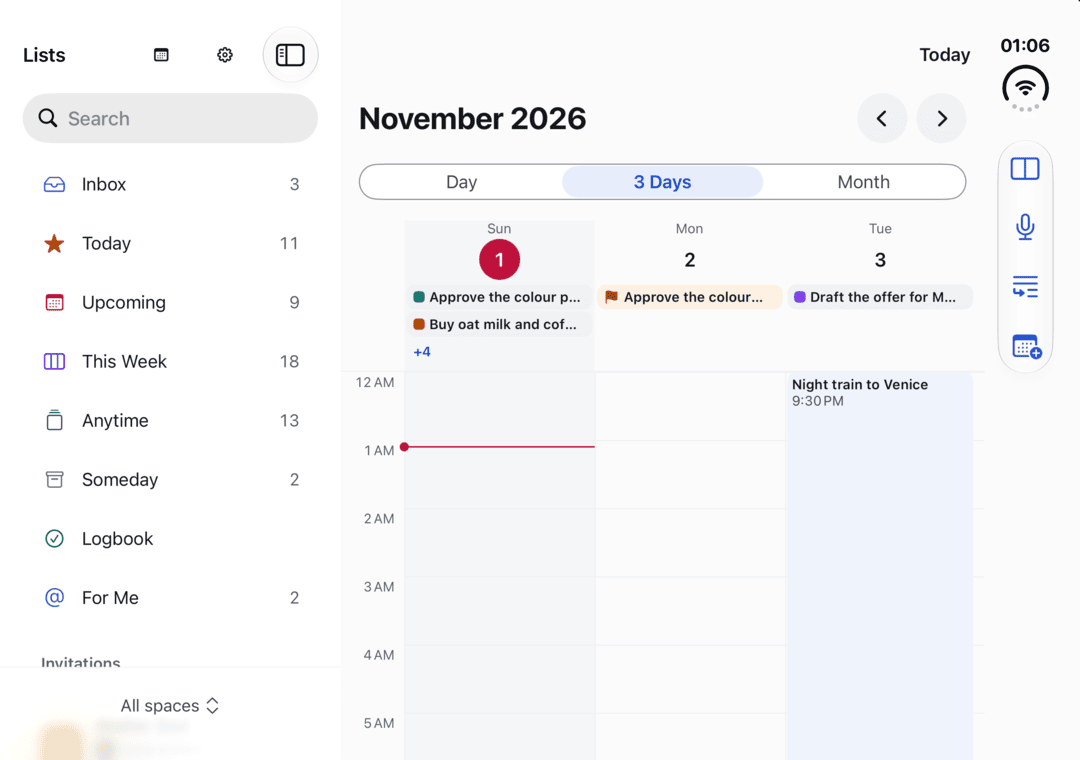
iPhone Duo folds. Open it flat and it is nearly a small iPad; bend it halfway and it stands up like a book or a tiny laptop; close it and it is an iPhone again. Dayslot supports all of it from test build 10. This post explains what you’ll see, and why it looks the way it does.
We started with three columns
Our first plan was ambitious: unfolded, a sidebar, your list and a day calendar, always all three; bent like a book, a special page about the one to-do you’re working on. We built it and then took it out. With Calendar selected, the same day showed twice. There was no way to get a full-width calendar. And Apple’s advice for the Duo is clear: don’t reinvent your app as people fold it. So we didn’t.
Unfolded: like an iPad
Opened flat, Dayslot looks like it does on iPad: the sidebar with your smart views and lists, and the view you picked next to it. The calendar gets the full width, with Day, 3 Days, Week and Month. Today keeps its calendar block (Timeline, Cards or Next up). As the system does on the Duo, the toolbar buttons move to a rail along the right edge, with the + at the bottom.
Two panes
One tap on Two Panes splits the screen into two independent halves. Each has its own navigation and its own +, and you choose what each side shows: by default, what you were looking at on one side and your calendar on the other. Drag a to-do from a list onto the calendar pane and it gets that start time (time blocking is part of Dayslot Pro). Bent like a book, Dayslot always shows two panes, one on each side of the fold.
Tabletop: “Now” on top
Half-open with the fold across, the phone stands on a desk. The top half is for glancing: the time block that’s running, or the next one, in large type with its time and list, and a bar of your whole day. The bottom half is for your fingers: what’s next today, and a field that understands “call Max at 5pm” like Quick add does.
Closed: just an iPhone
Folded shut, the outer display is a regular iPhone screen and Dayslot shows the iPhone layout you know. The toolbar buttons sit in the rail on the right edge, under the camera, and the + sits at the bottom of that rail.
Nothing on the fold
The fold is where text is hard to read and taps are unreliable, so no button, checkbox or line of text crosses it. The two panes meet exactly at the fold, and the system moves bars, sheets and menus out of the way.
What this means for you
Nothing to set up. Fold and unfold as you like: Dayslot keeps the view you were in and the to-do you had open. On every other iPhone, and on iPad and Mac, nothing changes. So far we’ve built and tested this in Apple’s simulator; we’ll fine-tune it on the real device.
The changelog lists what’s in each test build.